



01 How it works
Before you start setup, take a moment to understand how Swapface, ManyCam / WeCam, and WhatsApp work together.
When using WhatsApp on Windows, WhatsApp may not be able to call SwapfaceCam directly.
Therefore, you need ManyCam or WeCam as a virtual camera relay to pass Swapface’s face-swapped output to WhatsApp.
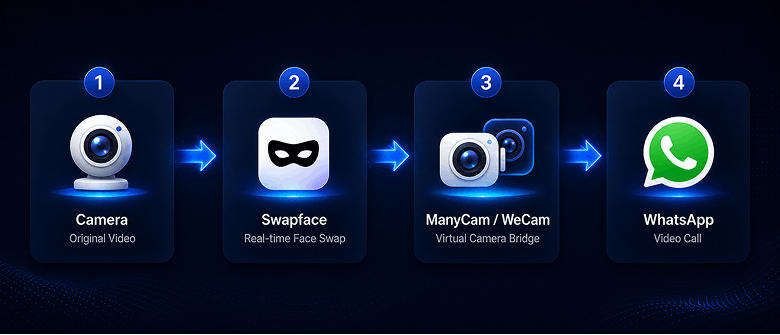
The full connection can be understood as:
Camera → Swapface → ManyCam / WeCam → WhatsApp
What does each app do?
Swapface
Reads the camera feed and performs realtime face swap.
ManyCam / WeCam
Receives the SwapfaceCam output from Swapface, then passes the feed to WhatsApp through a virtual camera.
WhatsApp
WhatsApp ultimately reads the virtual camera feed from ManyCam or WeCam and uses it for video calls. You do not need WhatsApp to connect to Swapface directly—ManyCam or WeCam handles the middle hop.
02 Set up Swapface Stream
Before connecting ManyCam or WeCam, make sure Swapface Stream is already configured and can output the face-swapped feed normally.
Complete the following in Swapface Stream first:
- Select the input camera for realtime video
- Select Stream output
- Select the face you want to use
- Start realtime face swap
- Confirm the preview shows the face-swapped result correctly
After these steps, Swapface outputs the processed realtime feed through SwapfaceCam. ManyCam or WeCam will then read that feed and pass it on to WhatsApp.
If you have not finished Swapface Stream setup yet, see our full tutorial first:
View the Swapface Stream setup tutorial →This article will not repeat the detailed Stream setup steps. Next we move directly into ManyCam and WeCam relay setup.
03 Connect Swapface with ManyCam
After basic Swapface Stream setup, use ManyCam to pass Swapface’s output to WhatsApp.
ManyCam acts as a virtual camera relay here. It reads the SwapfaceCam feed and re-outputs it as a virtual camera WhatsApp can use.
3.1 Download and install ManyCam
If something goes wrong when using OBS Virtual Camera as the output, wait a moment and try again.
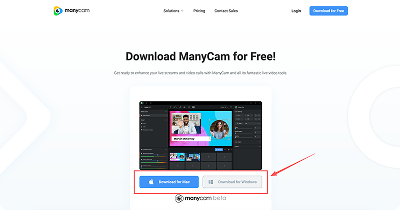
First, go to the ManyCam official website to download and install ManyCam.
After installation, open ManyCam and prepare to add Swapface’s video output as an input source.
3.2 Add SwapfaceCam in ManyCam
After opening ManyCam, go to the video source area. First Clear Preset in ManyCam, then add a new camera input and select SwapfaceCam from the device list.
ManyCam will start reading Swapface’s current realtime face-swapped feed.
When set up correctly, you should see Swapface’s face-swapped result in ManyCam’s preview area.
3.3 Confirm ManyCam is receiving the feed
When ManyCam shows Swapface’s face-swapped feed correctly, Swapface → ManyCam is complete. ManyCam will then act as the virtual camera WhatsApp uses next.
Keep in mind:
ManyCam’s input is SwapfaceCam. Later in WhatsApp, you need to select: ManyCam Virtual Camera.
3.4 Finish ManyCam setup
After the steps above, ManyCam setup is complete.
Next, open WhatsApp camera settings and select ManyCam’s virtual camera to finish the connection.
04 Connect Swapface with WeCam
If you use WeCam as the virtual camera relay, the overall logic is similar to ManyCam.
WeCam reads the realtime face-swapped feed from SwapfaceCam and provides it as a virtual camera for WhatsApp.
4.1 Download and install WeCam
First, go to the WeCam official website to download and install WeCam.
After installation, open WeCam and prepare to select Swapface’s video output as the input source.
4.2 Select SwapfaceCam in WeCam
After opening WeCam, go to the camera video settings area.
Find and select the following in the device list:
SwapfaceCam
After selecting it, WeCam will start reading Swapface’s current realtime face-swapped feed. If set up correctly, you should see Swapface’s face-swapped result in WeCam’s preview area.
4.3 Confirm WeCam is connected
After setup, confirm WeCam can stably show Swapface’s output feed.
Note these two different camera sources:
WeCam input: SwapfaceCam
WhatsApp later uses: WeCam Virtual Camera
In other words, SwapfaceCam is what WeCam reads, while WeCam Virtual Camera is what WhatsApp uses afterward.
4.4 Finish WeCam setup
Once WeCam shows Swapface’s realtime face-swapped feed correctly, WeCam relay setup is complete.
Next, open WhatsApp camera settings and select WeCam’s virtual camera to finish the connection.
05 Connect the virtual camera in WhatsApp
After ManyCam or WeCam is configured, the last step is to select the matching virtual camera in WhatsApp.
At this point, WhatsApp no longer reads the original camera—it reads the feed from ManyCam or WeCam.
5.1 Open WhatsApp camera settings
Open WhatsApp and go to video call or camera-related settings.
In the camera device list, select the virtual camera that matches the relay you configured earlier.
If you used ManyCam, select:
ManyCam Virtual Camera
If you used WeCam, select:
WeCam Virtual Camera
5.2 Confirm the video feed
After selecting it, WhatsApp will read the feed from ManyCam or WeCam.
If Swapface, ManyCam, or WeCam were set up correctly, you should see the realtime face-swapped feed in WhatsApp. Once WhatsApp shows the face-swapped feed correctly, the full connection is complete.
You can now use this virtual camera for WhatsApp video calls.
06 Use in Chrome
Besides the WhatsApp Windows app, if you use Chrome on sites that need a camera, you can also select the matching video device in browser settings.
07 Use in Microsoft Edge
Besides the WhatsApp Windows app, if you use Microsoft Edge on sites that need a camera, you can also select the matching video device in browser settings.
You may also need

SwapFace Windows User Manual
A complete SwapFace Windows realtime face swap manual—from installation and quick setup to effect optimization and troubleshooting.

Swapface Android Emulator Tutorial
A complete guide to using Swapface realtime face swap for WhatsApp video calls on Windows via the Nox Android Emulator, OBS Virtual Camera, and WeCam.

Swapface Stream Mac Complete Guide
A complete Mac guide covering the workflow, installing Swapface and OBS, configuring Stream, and using OBS Virtual Camera in Zoom, Meet, and other apps.

How to Rename the Swapface Virtual Camera
By default, apps see your camera as “SwapfaceCam”. Here is how to give the Swapface virtual camera any name you like, in about two minutes.

How to Install Swapface on Windows
System requirements, the right install location, and the mistakes that cause most installation problems — everything you need to set up Swapface on Windows.